Earth Survey Plugin (ESPlugin) Reference
Note: The Google Earth API was deprecated on December 12, 2014 and shut down on January 11, 2017. For similar functionality, see Earth Survey Maps (ESMaps).
ESPlugin is an implementation of the GEPlugin version 7.1, associated JavaScript API version 1.0, and Maps API version 3.7. It includes selected components from HCBM, NGSCS, PLSGE, and QUADS. All ESPlugin features are supported by Internet Explorer 8+, Firefox, Safari, and Chrome.
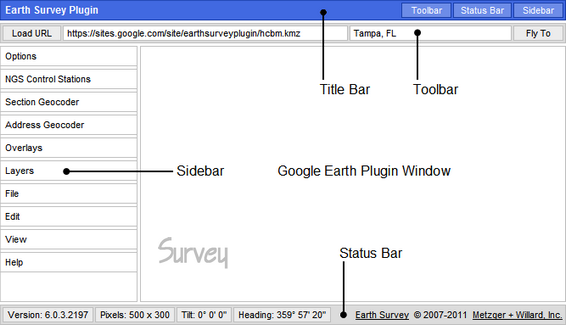
TITLE BAR
TOOLBAR
Type or paste an address, place name, or comma-separated latitude and longitude pair in the input field and click on Fly To to search for the location corresponding to the given address or place name, or the address corresponding to the given location. Placemarks may be added at geocoded locations with an eye altitude less than 200 m.
SIDEBAR
Options
Click on Feet, Miles to toggle between metric and imperial units.
Click on Street View or Auto Street View to toggle availability.
Click on Wheel Speed to enter a value from 1.0 to 5.0 for the mouse wheel zoom speed. Use -1.0 to -5.0 to invert the zoom direction.
Click on Exaggeration to enter a value from 1.0 to 3.0 for the elevation exaggeration factor. Changing the Exaggeration value will enable the Terrain layer.
Click on Fly-To Speed to enter a value from 1.0 to 5.0.
NGS Control Stations
Click on Query Setup to open an input form.
Click on Search Results to refresh the network link.
See NGSCS to learn more about NGS Control Stations.
Section Geocoder
Click on Point Search to refresh the network link.
Click on TRS Search to open an input form.
Click on Save As to save Section Geocoder results as a KML 2.2 document.
See PLSGE to learn more about the Section Geocoder.
Address Geocoder
Type or paste an address, place name, or comma-separated latitude and longitude pair in the input field and click on Fly To to search for the location corresponding to the given address or place name, or the address corresponding to the given location. Placemarks may be added at geocoded locations with an eye altitude less than 200 m.
Ctrl-Click on the globe to search for an address corresponding to the given location.
Shift-Click on a geocoder placemark to remove it.
Alt-Click on a geocoder placemark to edit its name and description.
Drag a geocoder placemark to change its location.
Click on Save As to save Address Geocoder placemarks as a KML 2.2 document.
Overlays
Click on Drive-Time Polygons to refresh the network link. Polygons for 5, 10, and 15-minute drive times in the US are provided by the ESRI DriveTime US network geoprocessing service.
Click on BLM Townships, Principal Meridians, or Special Surveys to refresh the respective network link. See PLSGE to learn more about these overlays.
Click on National Hydrography, USGS Quad Index, or USGS Topo Maps to refresh the respective network link. See QUADS to learn more about these overlays.
Click on Automatic Refresh to toggle availability.
Layers
File
The Open KML feature uses the HTML5 FileReader API on compatible browsers, while Internet Explorer is supported by an ActiveX script.
To open a local file in Internet Explorer, change or verify the following security settings:
-
Tools, Internet Options, Security, Custom level...
- ActiveX controls and plug-ins,
Initialize and script ActiveX control not marked as safe,
Prompt - Miscellaneous,
Include local directory path when uploading files to a server,
Enable
Click on Print to open an instruction balloon for quick reference. The GEPlugin does not currently support printing the 3D viewer window. Use the Status Bar page size display to verify that the ESPlugin page has an appropriate aspect ratio, or select an aspect ratio from the View panel. Then use the free Jing desktop application to save an image of the page for subsequent printing.
To send Jing output to the Windows Photo Viewer for printing,
- Associate Portable Network Graphics (PNG) files with the Windows Photo Viewer.
- Right-click any PNG file and select Open with, Choose default program.
- Ensure that Always use the selected program to open this kind of file is checked, and select Windows Photo Viewer.
- In the Jing Capture Saved dialog box, click Open the file.
- In the Photo Viewer Print Pictures dialog box, uncheck Fit picture to frame.
Edit
Click on Delete KML to open an instruction balloon for quick reference. Shift-Click on any KML geometry object to remove it.
Click on Properties to open an instruction balloon for quick reference. Alt-Click on any KML geometry object to edit its name and description.
View
| Selection Aspect Ratio Minimum Page Size |
Supported Media |
|
| Name |
Size |
|
|
letter (11 × 8.5) 1.294117647 776 px × 600 px |
Letter ANSI A |
11 in × 8.5 in |
|
legal (14 × 8.5) 1.647058824 906 px × 550 px |
Legal |
14 in × 8.5 in |
|
ledger (17 × 11) 1.545454545 927 px × 600 px |
Ledger Tabloid ANSI B S11R |
17 in × 11 in |
| Statement |
8.5 in × 5.5 in |
|
|
wallet (3.25 × 2.5) 1.300000000 715 px × 550 px |
Wallet1 |
3.25 in × 2.5 in |
|
3R (5 × 3.5) 1.428571429 714 px × 500 px |
3R |
5 in × 3.5 in |
|
4R (6 × 4) 1.500000000 750 px × 500 px |
4R |
6 in × 4 in |
| S8R |
12 in × 8 in |
|
| S10R |
15 in × 10 in |
|
| S12R ARCH B |
18 in × 12 in |
|
|
5R (7 × 5) 1.400000000 770 px × 550 px |
5R |
7 in × 5 in |
| 2R Wallet |
3.5 in × 2.5 in |
|
|
8R (10 × 8) 1.250000000 750 px × 600 px |
8R |
10 in × 8 in |
| 12R |
15 in × 12 in |
|
|
DIN / ISO / JIS 1.414213562 849 px × 600 px |
A4 |
297 mm × 210 mm |
| A3 |
420 mm × 297 mm |
|
| ISO B5 |
250 mm × 176 mm |
|
| ISO B4 |
353 mm × 250 mm |
|
| JIS B5 |
257 mm × 182 mm |
|
| JIS B4 |
364 mm × 257 mm |
|
|
4:3 video 1.333333333 800 px × 600 px |
Standard |
320 px × 240 px |
| 640 px × 480 px |
||
| 800 px × 600 px |
||
| 4D |
6 in × 4.5 in |
|
| 6R |
8 in × 6 in |
|
| ARCH A |
12 in × 9 in |
|
|
16:9 video 1.777777778 960 px × 540 px |
Widescreen |
640 px × 360 px |
| 800 px × 450 px |
||
| 960 px × 540 px |
||
|
1Sometimes called US Wallet, this is the Wallet size in Windows Photo Viewer. |
||
Click on Loaded URL, Local KML, Addresses, or Survey Logo to toggle visibility. Local KML is the last collection of objects either pasted with Paste KML or opened with Open KML. Addresses comprises all Address Geocoder placemarks. If the Survey logo is hidden, the Title Bar will be displayed.
Help
Click on About to display copyright, date, and version information.
STATUS BAR
All images and data are retrieved from remote servers. Data errors, accuracy, and availability are beyond the control of this application.